
GoreBox Beginners Guide | Getting Started Safely
New to GoreBox APK? Learn how to start safely, set up your first session, understand the sandbox, and adjust controls and graphics before you experiment.

Customise GoreBox touch controls on Android in depth: button placement for building versus exploring, sensitivity for camera work, and profiles for different session types.
GoreBox asks your thumbs to do two different jobs. Exploring wants a responsive camera and movement that flows; building wants precision, stability, and buttons that never fire while you are lining up a placement. A single layout serves both only when it is tuned with both jobs consciously in mind.
Start by noticing which job suffers. If exploring feels great and building feels clumsy, your sensitivity is probably tuned for travel. If building is precise and turning feels like wading, the reverse. Name the sufferer before touching a slider.
For building, the actions you use while placing objects should sit where your thumbs rest at their calmest, not at full stretch. Full-stretch buttons get pressed with a moving thumb, and a moving thumb nudges the camera at the exact moment you needed it still.
Group the building actions together in one neighbourhood and the movement actions in another, so each thumb learns a district. Cross-district mistakes, pressing a travel action during a placement, are the errors good placement eliminates first.
Camera sensitivity for a sandbox should be tuned on the smallest movement you make often: the tiny adjustment to align an object or read a scene. If that adjustment overshoots, lower sensitivity in small steps until alignment becomes boring. Boredom is the sound of a correct setting.
Long turns will feel slower, and that is the right trade for most builders. Explorers who mostly tour worlds can run higher; players who do both can split the difference and accept mild imperfection in both jobs, which is the honest shape of most good setups.
Keep in mind:
How you hold the phone changes what comfortable means. Two-thumb landscape play, a controller-style grip accessory, and one-handed casual play each want different layouts, and a layout perfect for the desk may cramp on the sofa. Tune in the position and grip you use for your longest sessions.
Revisit the setup monthly if you play a lot. Hands adapt, games update their interfaces, and a layout that was invisible in January can develop one annoying button by June. Small maintenance keeps controls beneath your attention, where they belong.
Updates occasionally reset layouts or sensitivities to defaults. If everything feels wrong after an update, check the settings before concluding the game changed its feel: you may simply be playing on factory values with trained hands.
This is the moment your written record of final values earns its keep. Restore the numbers, test in your practice world, and only then judge whether the update genuinely changed anything about control feel.
GoreBox touch controls are a workshop setup: districts for building and movement, sensitivity tuned on your smallest common movement, and values recorded outside the game. Tune for the job your thumbs do most, test in a practice world, and the interface disappears, leaving only the sandbox.
Download GoreBox APKNew to GoreBox APK? Learn how to start safely, set up your first session, understand the sandbox, and adjust controls and graphics before you experiment.
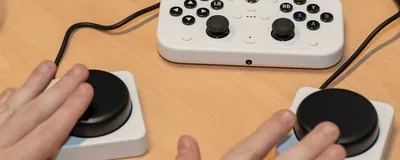
Set up GoreBox touch controls on Android for comfortable sandbox play, covering layout, sensitivity, button size, and testing adjustments in a safe practice world.
Choose GoreBox graphics settings on Android that balance clarity and smoothness, covering resolution, effects, shadows, and how to test changes without overheating your phone.